


UniFi Protect
4.7951.00 Reviews
App Specs
- Version
- 3.8.0
- Updated On
- License
- Free
- Downloads
- 1,000,000+
- Developer
- Ubiquiti Inc.
- Categories
- Lifestyle
- Platform
- Android, iOS
Screenshots
 Analysis by AppCompare
If you are looking for a phone-based way to keep an eye on a UniFi Protect installation, this app is built for a very specific job: giving you access to your cameras and security system from a mobile device. I spent time with it as a first-time user would, moving from installation to the first useful check, and my overall impression is that it feels more like a control panel for an existing UniFi setup than a general-purpose home security app. That distinction matters before you download it.
UniFi Protect is a free lifestyle app from Ubiquiti Inc., available for everyone in the family to use from an age-rating perspective. It has been around since 2018 and has grown into a well-established mobile companion, with more than a million installs and a 4.7 average from roughly twenty-three thousand ratings. The current release is version 3.8.0, and it supports devices running Android 7.0 or later.
What the app is really for
The first thing I would tell a friend is not to treat this as a standalone camera service. Its value depends on already having a compatible UniFi Protect environment. Once that foundation is in place, the app gives you a convenient way to check cameras, review what has happened, and stay connected when you are away from the location. Without that environment, installing the app alone will not turn a phone into a security system.
That makes the audience quite clear. It is a strong fit for someone who has chosen UniFi hardware and wants a clean mobile view of the system. It also makes sense for a small office, workshop, shop, or home where one person manages the installation while other trusted people need a simple way to check in. If you only want a cheap indoor camera with a quick cloud setup, a camera maker’s all-in-one app will probably be less demanding.
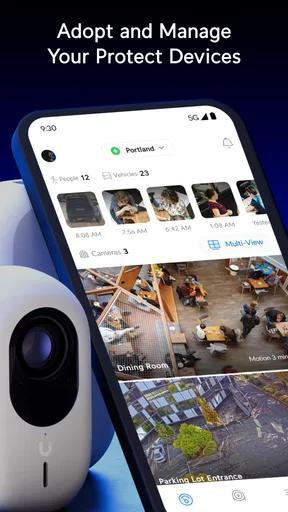
Compared with the usual consumer camera apps, Protect feels more connected to a broader network and security setup. That can be an advantage when you want one place to inspect several cameras rather than jumping between unrelated manufacturer apps. The trade-off is that the initial experience is less forgiving: you need to understand how your UniFi installation is organized before the mobile screen becomes useful.
I also like that the app does not try to disguise this relationship. Its purpose is focused, and the interface is most helpful when you already know what camera or location you want to inspect. For a first-time user, the important mindset is to see the app as the mobile window into Protect, not as the entire product by itself.
Starting with the right expectations
After installing it, I would first confirm that the UniFi Protect system is already running and that I have the correct account details ready. This small preparation step saves frustration. Many people assume that the first screen will immediately show live video, but a security app cannot display cameras it has not been connected to or authorized to access.
Worth Reading Before You Choose

EA SPORTS FC Mobile 26 Is a Bigger Football Game, but It Takes Time

Flipboard Shows What News Apps Must Do Beyond the Feed

Switching to Android Auto Means Rethinking Your Driving Routine

Google Calendar Makes a Crowded Week Easier to Manage

Ludo King Makes the Most of the Minutes Between Plans

Baby Panda World Brings Quick Play to Modern Phones, but Its Game Library Feels Busy
It is also worth deciding what you want to accomplish before opening the app. “I want to see whether the back door is closed” is a better first goal than “I want to explore every setting.” A narrow objective helps you recognize when setup has succeeded and prevents you from getting lost in administrative options before seeing the main benefit.
On a phone, a security app is often used in short bursts. You open it, check something, and leave. Protect suits that pattern when the system is configured properly. I found the most useful habit was to think in terms of locations and events: identify the camera that matters, check its current view, then look back only as far as needed rather than browsing without a purpose.
Getting through the first setup
The first setup is mainly about connecting the app to the existing Protect environment and making sure the correct account has access. I recommend doing this while you are physically near the installation if possible. If something does not appear as expected, being on-site makes it easier to determine whether the issue is the phone, the account, or the underlying system.
Once signed in, take a moment to identify the main screen rather than immediately changing preferences. Look for the camera or site you recognize, and confirm that its name matches the physical location. This sounds basic, but clear naming becomes increasingly important when several views look similar. A label such as “side entrance” is much more useful during a quick check than a vague device name.
A practical setup tip is to test access from the same network first, then repeat the check while away from it. The first test isolates the basic connection and account path. The second tells you whether the remote-use experience is ready for the moment you actually need it. Treating those as two separate checks makes troubleshooting far less confusing than testing only when you are already out of the building.
Another useful habit is to avoid changing several things at once. If you rename cameras, adjust access, and alter notification behavior together, it becomes difficult to tell which change affected your experience. I would make one small adjustment, verify it on the phone, and then continue. That approach is especially helpful for people who are comfortable using apps but do not regularly manage security equipment.
The app itself is free, which removes one barrier to trying the mobile experience. Still, “free” does not mean that the complete security setup has no cost. The phone application is the viewing and management layer; the cameras and the Protect environment are what make it meaningful. I would explain that distinction to anyone comparing it with a consumer app that bundles hardware, cloud access, and mobile software under one purchase.
The first meaningful success
Your first real success should be simple: open the app, find a known camera, and confirm that the view corresponds to what is happening in front of it. Do this during daylight and while you are near the camera. Seeing a familiar scene removes several uncertainties at once and gives you confidence that you are looking at the correct location.
After that, try the app in the way you will actually use it. Walk past the relevant area, wait for the system to register activity if your installation is configured for it, and then inspect the resulting information from the phone. The point is not to create a dramatic test. It is to understand the path from an event at the property to the action you take in the app.
This is where I found a less obvious strength: the app becomes much easier to trust when you learn its rhythm before an urgent situation. You discover how quickly the relevant view appears, how camera names are presented, and whether you can identify the right moment without guessing. Security tools should be tested during ordinary conditions, not introduced for the first time when something feels wrong.
A realistic example would be checking a delivery area while you are at work. Rather than asking someone at home to investigate, you open Protect, select the camera covering the entrance, and compare the current view with the recent activity. If the camera labels are clear and your access is already working, this takes only a short visit to the app. If the installation has many cameras with similar names, the same task can become surprisingly slow, which is why organization matters more than many first-time users expect.
For a shared household or small team, the first successful action may instead be confirming that the right person can access the right view. I would test this with the actual secondary user rather than assuming that an account invitation or permission change worked. A security app should not require everyone to have the same level of control, and careful access habits are more important than giving every user the broadest possible view.
Where first-time users commonly get confused
The biggest source of confusion is the boundary between the mobile app and the equipment behind it. If a camera is missing, the answer may not be inside the phone application. It could be a connection problem, an account-access issue, a device configuration problem, or simply the wrong site selected. I would check those possibilities in that order instead of repeatedly reinstalling the app.
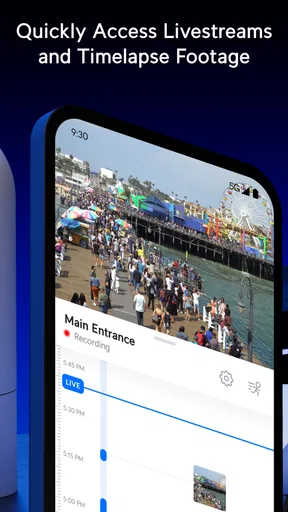
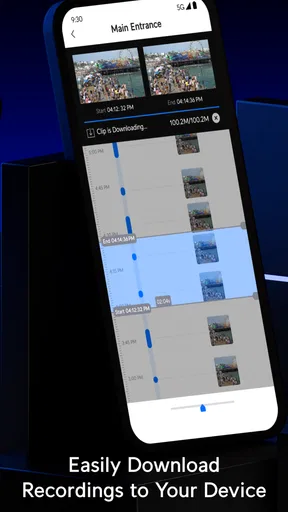
Another common mistake is assuming that a live view and recorded activity are the same thing. A live image tells you what the camera is showing now. Looking back through activity answers a different question: what happened earlier? When you need to understand an event, start from the approximate time and location, then narrow the search. Randomly scrolling through everything is slower and makes it easier to miss the relevant moment.
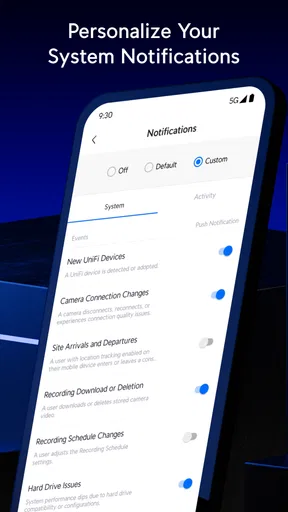
Notifications can also create the wrong expectations. A phone alert is useful only when it leads to a clear action. If you receive too many alerts, the problem may not be that the app is unreliable; the system may be watching an area with constant movement or using settings that are too broad for your routine. I would spend time identifying which alerts genuinely matter, especially near roads, shared walkways, or busy entrances.
There is a trade-off between convenience and certainty. A quick notification can tell you that something deserves attention, but it should not automatically be treated as proof of what happened. I prefer using the alert as a prompt to open the relevant camera and inspect the context. That extra step reduces the chance of reacting to an ordinary movement as though it were a serious incident.
People also sometimes expect the phone to replace a full management screen. Protect is convenient for checking and responding while mobile, but detailed administration can feel less comfortable on a small display. If you are setting up several cameras, reviewing a complicated installation, or trying to understand why a device behaves differently from another, a larger screen and direct access to the main system may be the better tool.
One more practical point is privacy. A camera app may be free and rated for everyone, but the images it provides can still be sensitive. I would use a strong device lock, avoid leaving the app open where other people can casually browse it, and be selective about who receives access. Those are not glamorous features, but they are part of using a security system responsibly.
How it compares with simpler camera apps
The usual alternative is the app made by the camera manufacturer, particularly one designed around a single camera family and a guided cloud setup. Those products often feel easier on day one because they assume a smaller installation. If your needs begin and end with one camera in one room, that simplicity may be more valuable than the wider structure of Protect.
Protect makes more sense when you have committed to the UniFi approach and want the phone experience to remain connected to that environment. The benefit is consistency across the cameras and locations that belong to the same system. The cost is that the app cannot remove the learning curve created by the underlying installation. For a first-time user, that means the best comparison is not “which app has the prettiest home screen?” but “which system matches the way I plan to manage cameras?”
I would also avoid comparing it with a general smart-home dashboard as though they were identical. A broad home-control app may be better for lights, thermostats, and mixed-brand devices. Protect is narrower, and that narrowness is useful when your priority is security video rather than controlling every connected object in the house.
For a business or property manager, the decision depends on how much structure is wanted. A basic consumer camera app may be quicker for a single location, while Protect is more appealing when camera organization, access, and regular checking are part of a larger UniFi setup. The mobile app is not automatically the best choice just because it has a high rating; it is the best choice when the surrounding system fits your needs.
Small habits that make the app more useful
My first recommendation is to make camera names reflect decisions, not hardware. “Camera three” tells you almost nothing when you are in a hurry. A location-based name tells you where to look and reduces the chance of checking the wrong angle. This is one of those improvements that costs almost no time but becomes more valuable every time the system grows.
Second, create a short mental route through the app. For example, check the entrance first, then the driveway, then the interior area that matters most. You do not need to inspect every view on every visit. A consistent route makes routine checks faster and helps you notice when one expected view is missing.
Third, test your remote workflow at a calm time. Open the app from outside the property, identify the correct location, inspect a live view, and review an earlier activity item. Doing this before you need it reveals whether your account, camera naming, and connection habits are practical. It also gives other household members a chance to learn without pressure.
Fourth, separate routine monitoring from investigation. A quick glance is enough for a normal check, while an unusual event deserves a slower review of the relevant camera and time. Mixing both habits can lead either to unnecessary deep dives or to an overly casual response when context matters.
Finally, keep the phone experience tidy. Remove uncertainty about which account is being used, make sure the app is updated through your normal store process, and revisit access when people stop needing it. These steps are easy to overlook because the app appears simple once it works, but they protect the reliability of the whole workflow.
Who should use it and who should skip it
I would recommend UniFi Protect to someone who already owns or plans to build a UniFi Protect installation and wants dependable mobile access without switching between separate camera apps. It is also a sensible choice for users who value a focused security view and are willing to spend a little time organizing cameras and access properly.
I would steer a complete beginner toward another option if they want the phone app to do everything immediately, including hardware discovery, recording decisions, and simple household sharing with almost no setup. Protect can be reassuring after the system is prepared, but it is not the most forgiving path for someone who has not decided how the cameras should be installed or managed.
It may also be the wrong fit if your home contains a mixture of camera brands and you want one neutral app to control all of them. The advantage here comes from belonging to the UniFi environment, not from being a universal camera viewer. Choosing it for a mixed collection could create more fragmentation rather than less.
The app is free and suitable for an everyone-rated audience, but I would still judge it by the total system rather than the download cost. If the surrounding UniFi equipment and management style suit you, the mobile experience is a useful extension. If they do not, no amount of phone-side convenience will fix that mismatch.
My final take after the first-use journey
UniFi Protect is at its best when it turns an already organized security installation into something I can check quickly from my phone. The path to success is straightforward once I understand the relationship between the app, the account, the cameras, and the location: connect the correct environment, verify one familiar view, test a realistic activity check, and only then explore broader settings.
Its main weakness is also clear. The app does not remove the responsibility of understanding the system behind it. Camera naming, access management, notification choices, and remote testing all affect whether the experience feels effortless or confusing. Users who accept that small learning curve will get more from it than people expecting a one-camera consumer setup.
With a 4.7 average and a large installed audience, it has clearly earned attention, but my recommendation is still conditional rather than automatic. For an existing UniFi user, I think it is a practical and focused companion. For someone starting from zero and wanting the shortest possible route to a working camera, I would compare simpler alternatives first. The right first milestone is not exploring every menu; it is opening the app when away from home and confidently finding the camera that answers your immediate question.
Pros
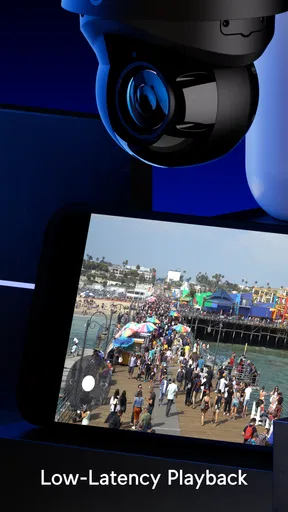
- Reliable live viewing and playback for supported UniFi cameras.
- Clear event timelines make recorded footage easy to review.
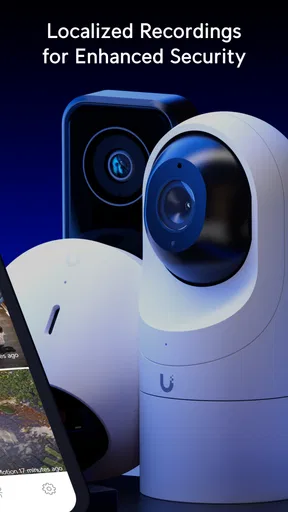
- Local recording reduces reliance on third-party cloud storage.
- Useful smart detection features for people
- vehicles
- and packages.
- Clean interface with convenient access to multiple camera feeds.
Cons
- Requires compatible UniFi Protect hardware to unlock its full functionality.
- Advanced features may depend on specific camera models or firmware.
- Remote access can be affected by network configuration or outages.
- Limited value for users without an existing UniFi ecosystem.
- Some notifications and detection results may occasionally be inaccurate.
FAQs for UniFi Protect
What is UniFi Protect used for?
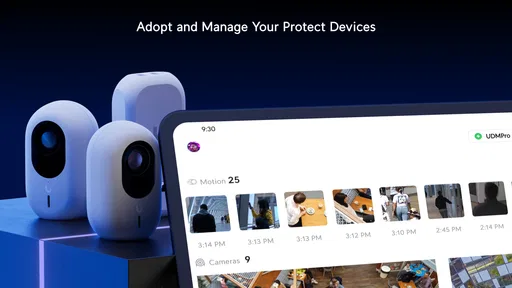
UniFi Protect is a video surveillance and security management app for UniFi camera systems. It lets you view live footage, review recordings, receive motion alerts, manage cameras, and monitor connected devices from an Android or iOS phone. It is mainly designed for users who operate UniFi Protect hardware through a compatible UniFi Console, rather than as a standalone camera application.
Does UniFi Protect work without UniFi hardware?
No. The UniFi Protect app is primarily a companion for compatible Ubiquiti UniFi consoles and cameras, such as systems managed through a UniFi CloudKey Plus, Dream Machine Pro, Dream Machine Special Edition, or another supported console. Installing the app alone does not provide surveillance functionality. You generally need an active UniFi Protect deployment, configured cameras, storage, and a UniFi account or local access credentials.
Can I watch live video and recorded footage remotely?
Yes, UniFi Protect supports remote access when your console is properly connected to the internet and remote access has been enabled. From the mobile app, you can usually open live camera feeds, browse recorded events, and check alerts while away from home or the office. Performance depends on your upload connection, camera resolution, console configuration, and the quality of your mobile network.
Does UniFi Protect send motion and security notifications?
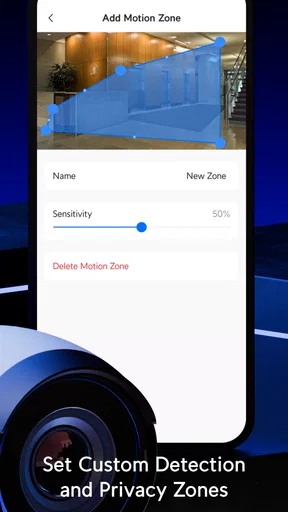
UniFi Protect can send push notifications for supported events, including motion detection and other alerts configured within your surveillance system. Notification behavior depends on the camera model, detection settings, zones, schedules, and app permissions. Before relying on alerts, it is important to test them and confirm that battery-saving settings, operating-system permissions, and network conditions are not preventing notifications from appearing promptly.
Is UniFi Protect free to download and use?
The UniFi Protect mobile app is generally available as a free download, but using it requires compatible UniFi Protect hardware and cameras, which represent the main cost of the system. Depending on your setup, you may also need storage for recordings and networking equipment. Unlike some cloud-camera services, UniFi Protect is closely tied to your own UniFi Console and does not function as a complete subscription-free camera solution by itself.


